Password-protect
your Form Submissions
Anyone with your ?admin=… URL can see who filled out your forms. Add a password layer so only you can read them — set it once, unlock with a memorable URL like ?admin=1.
Step-by-step
All five steps, in detail.
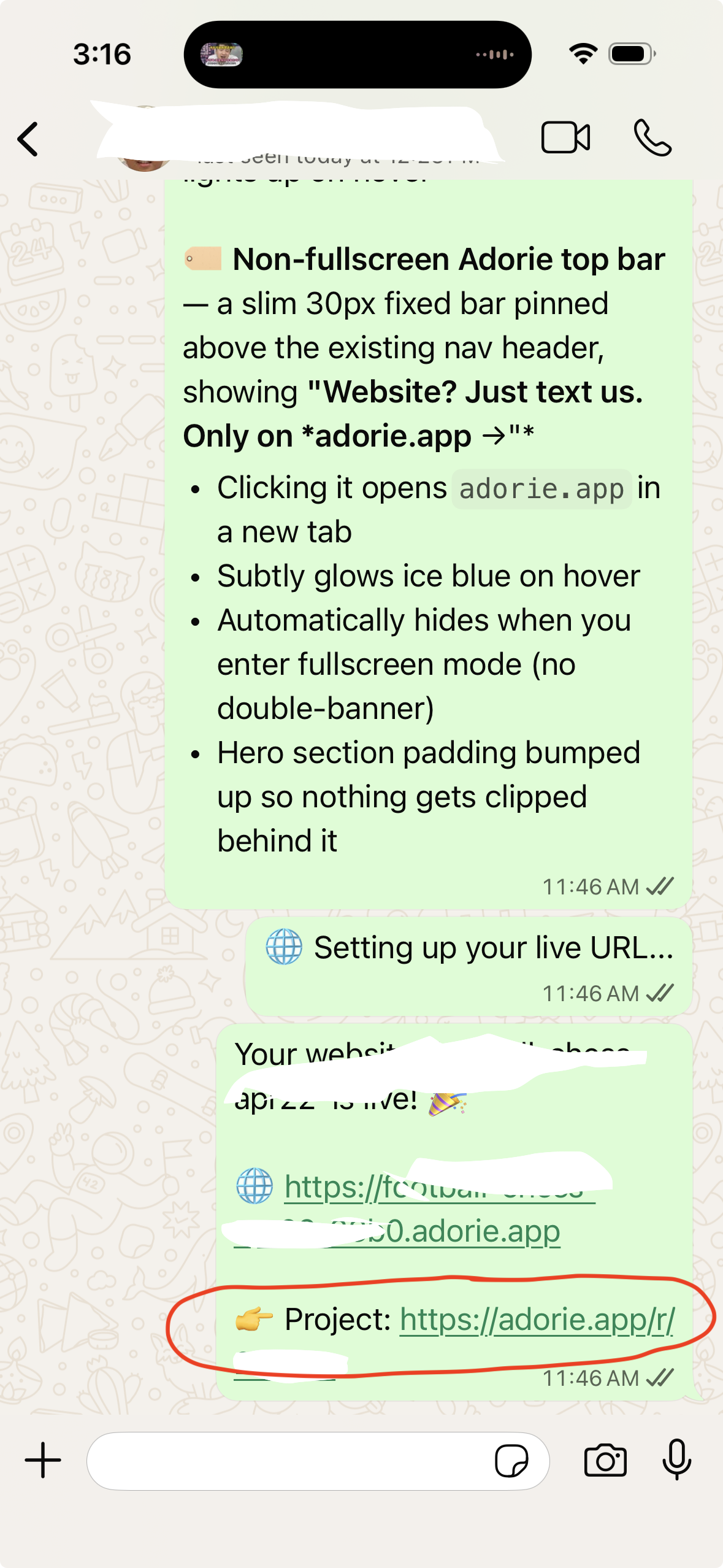
Open the project from chat
In your WhatsApp or Telegram thread with Adorie, tap the Project link Adorie sent when it built your site. The dashboard opens with the project loaded.
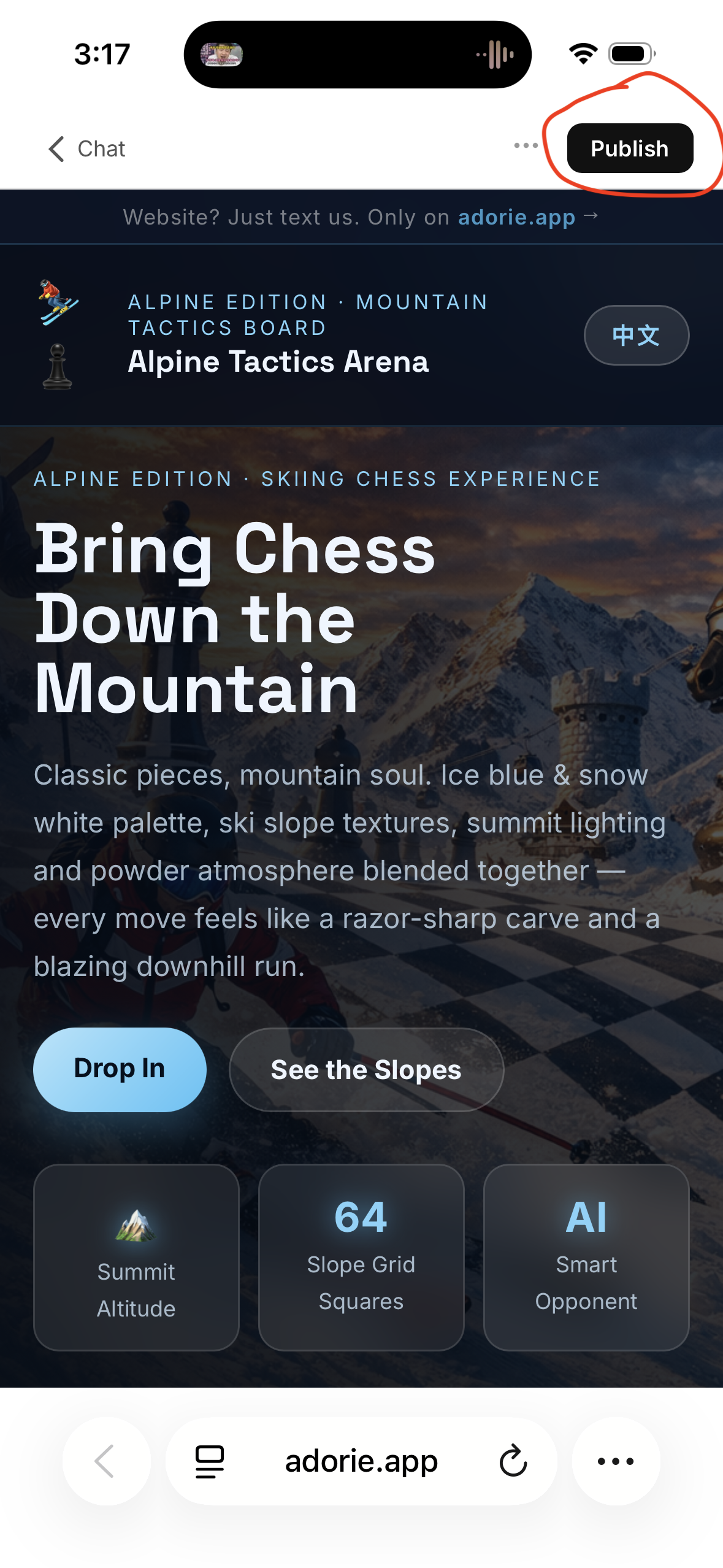
Tap Publish
In the project view, tap the Publish button at the top right. It opens the same modal you used the first time you went live — your existing subdomain is already set up; you'll just be adding the password layer.
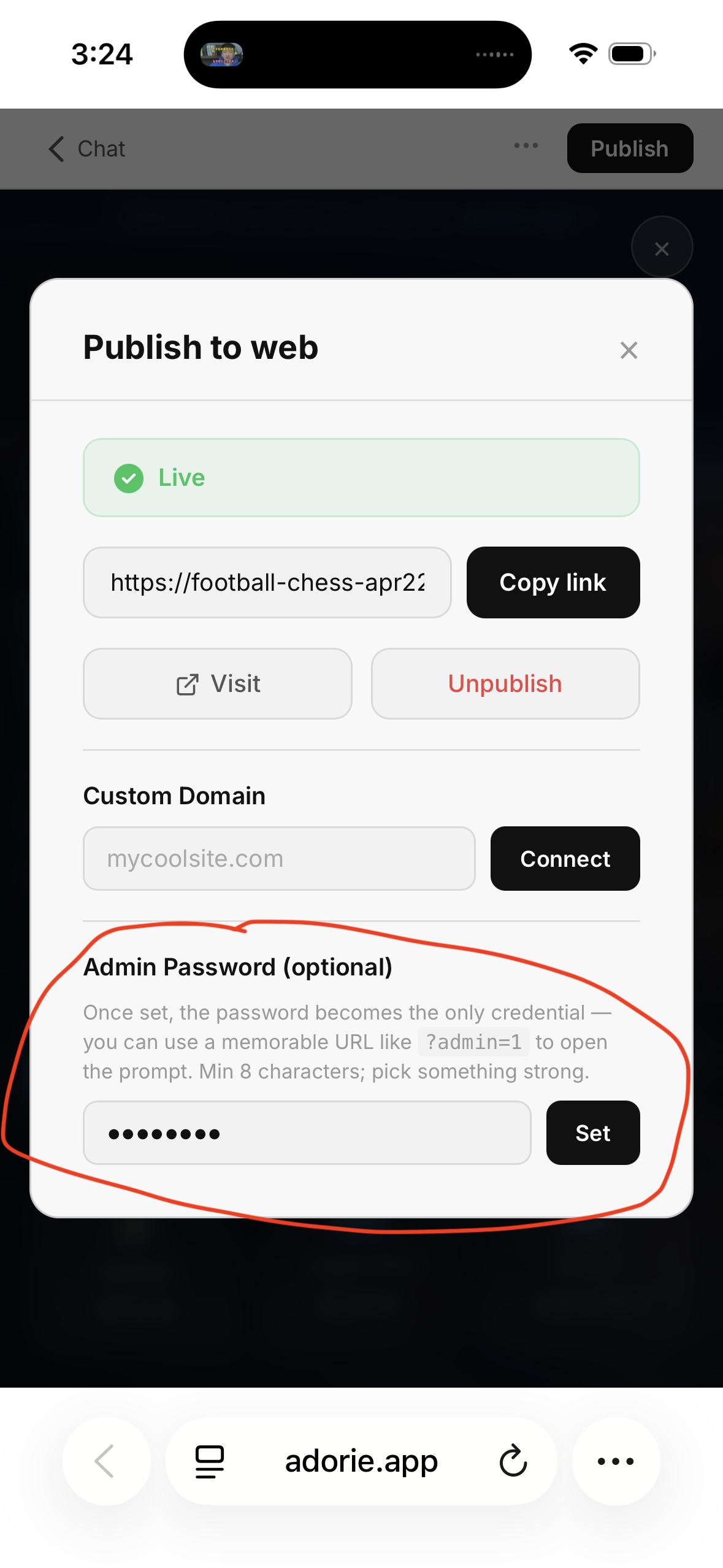
Set an admin password
Scroll to the Admin Password (optional) section near the bottom. Type a password (min 8 characters), then tap Set. Once a password is set, the URL token stops being a secret — the password becomes the only credential.
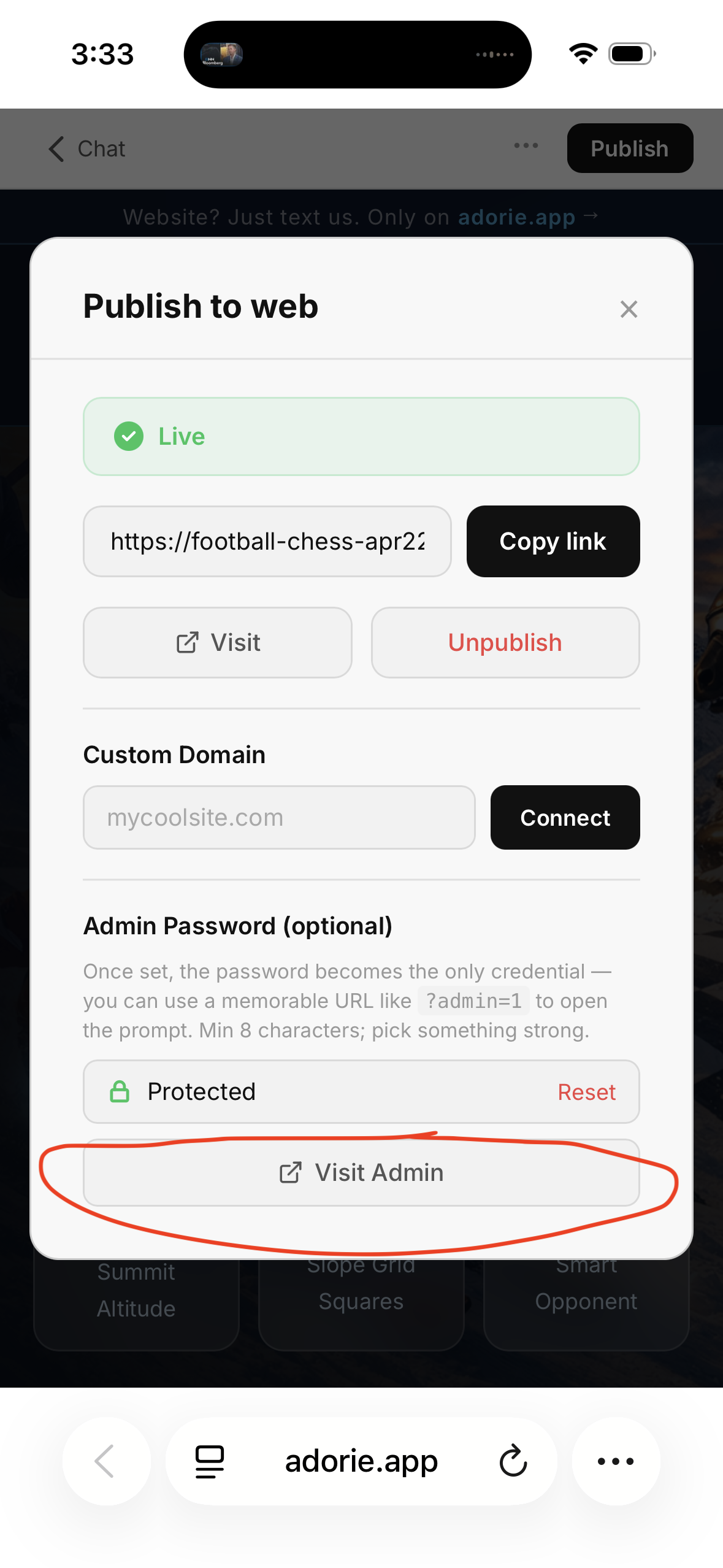
Tap "Visit Admin"
The section now shows a Protected badge and a Visit Admin button. Tap it — it opens your live site with ?admin=1 appended (the easy URL you'll bookmark).
Unlock with your password
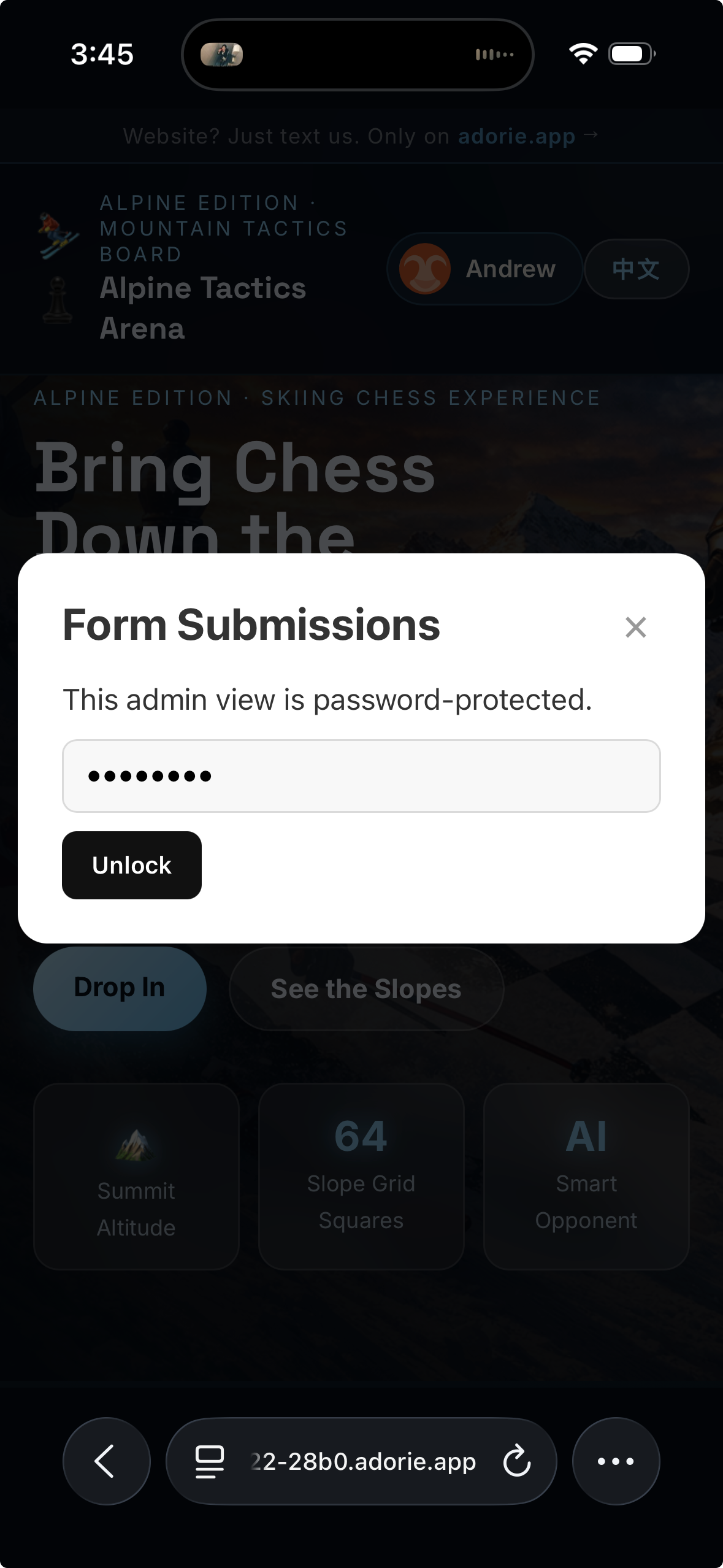
The live site loads and immediately shows the Form Submissions password prompt. Type your password, tap Unlock, and you're in. Your browser remembers the unlock for an hour, so reloads in that window go straight to submissions.
🔒 What changes when you set a password?
Before the password, the long ?admin=<32-char-token> URL was the credential — anyone who saw that URL (screenshot, browser history, screen-share) could see Form Submissions forever. With a password, the model flips: the URL just opens the prompt, and your password is the real lock.
Once a password is set, ?admin=1, ?admin=hi, or ?admin=<anything> all open the password prompt. The exact value doesn't matter — only the password does.
The minimum is 8 characters. A mix of letters and digits is plenty for the kind of casual scraping this protects against; avoid words from your site copy.
Wrong-password attempts are capped at 5/min from one IP and 30/hour from any source against the same project. Botnets that rotate IPs still hit the project-wide cap.
After a successful unlock, your browser keeps a server-signed token in sessionStorage so you don't re-type for an hour per project per browser session.
Open the project → Publish → Admin Password → tap Reset. The password is cleared instantly. Set a new one (or leave it blank to go back to URL-token-only access).
Any site collecting submissions you'd rather keep private — RSVPs, beta signups, contact forms, lead lists. If your admin URL might leave your phone (slack share, screenshot in a tweet, screen-share on a call), this layer matters.
?admin=1 on your phone. That bookmark + your password is everything you need — no copying long tokens, no remembering query strings.
Related guides
Other things you can do once your site is live.
Connect a custom domain
Point yourbrand.com at your generated site with a single CNAME record. Step-by-step with screenshots.
Build your first website
New to Adorie? Send one message on WhatsApp or Telegram and have a live site in under a minute.
Read the get-started guide →All guides
Browse every Adorie tutorial — payments, custom domains, AI inside the site, and more.
See all guides →Don't have a site yet?
Build one in 60 seconds — no signup, no code. Just chat with Adorie.